Create a dashboard
Overview
Harness Dashboards let you build custom views to track deployments, costs, builds, and other platform data in one place. You can create dashboards manually or use the AI chat assistant to generate them from a plain-language description.
Navigate to Dashboards
- In the left sidebar, click the module selector (grid icon) next to the Harness logo.
- Select Dashboards.
The Dashboards landing page shows three sections:
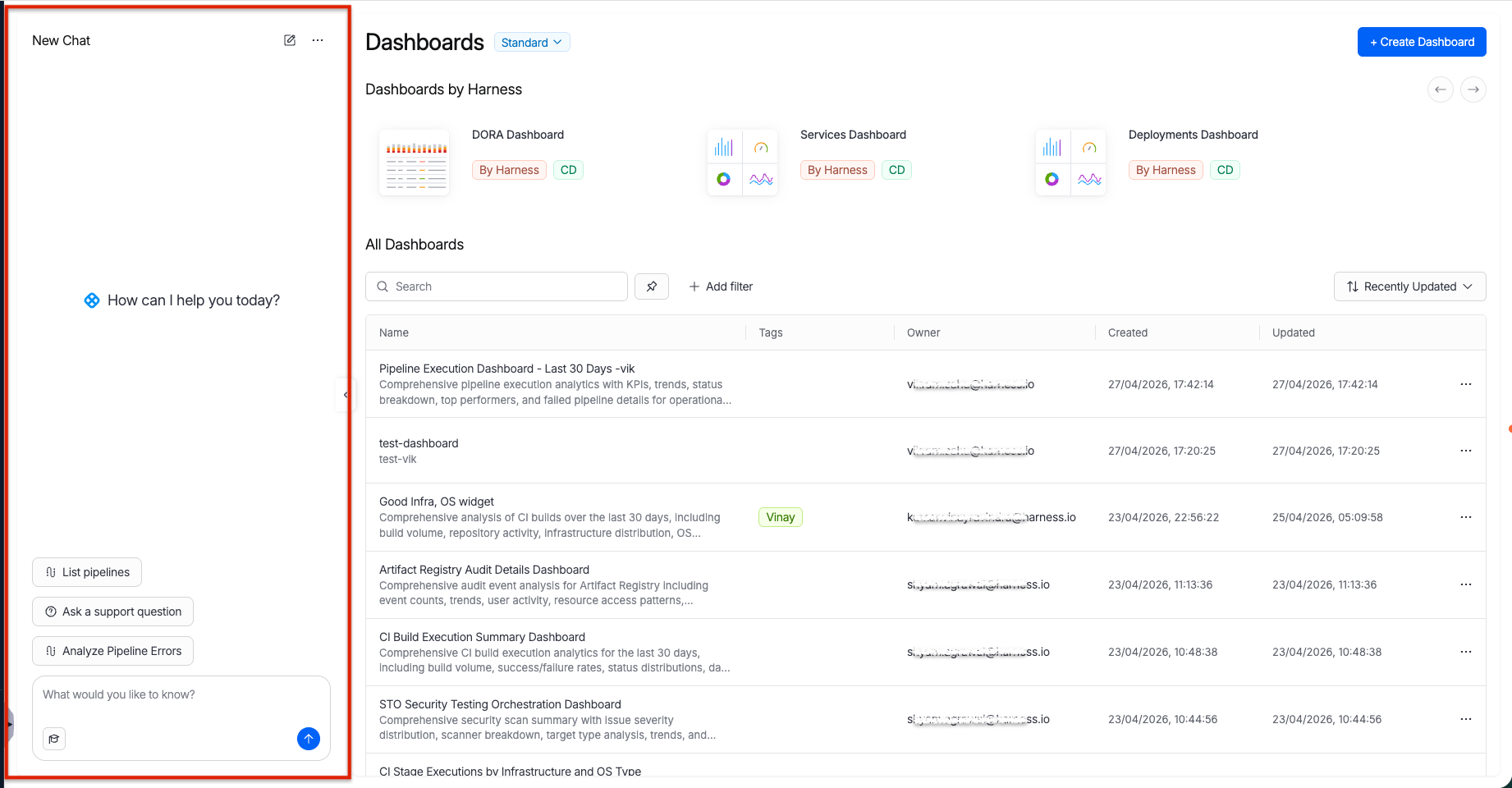
- AI chat window: An AI chat panel on the left side of the page. You can type a plain-language request such as "Create a dashboard showing deployment failure rates for the last 30 days" and the assistant generates a dashboard for you. The panel also offers quick-action buttons like List pipelines, Ask a support question, and Analyze Pipeline Errors to help you get started quickly.
- Dashboards by Harness: Pre-built dashboards provided by Harness, such as the DORA Dashboard, Services Dashboard, and Deployments Dashboard. Each card shows which module it belongs to (for example, CD). Click any card to open it directly.
- All Dashboards: A searchable, filterable list of every dashboard in the account, including ones you or your team have created. Use the Search bar, Add filter, or the sort dropdown (for example, Recently Updated) to find a specific dashboard.
Dashboards by Harness
Harness provides a set of pre-built dashboards that are ready to use out of the box. These dashboards appear at the top of the landing page under the Dashboards by Harness section. Each dashboard is tagged with By Harness and the module it belongs to (for example, CD). You can open any of them to explore your data immediately without building a dashboard from scratch.
Pre-built dashboards are read-only. You cannot edit, rename, or delete them. To customize a view based on a pre-built dashboard, create a new dashboard and add your own widgets.
The following pre-built dashboards are available:
DORA Dashboard
The DORA Dashboard tracks the four key DORA (DevOps Research and Assessment) metrics that measure software delivery performance. Use this dashboard to understand how efficiently your teams ship changes and how quickly they recover from failures.
This dashboard includes the following widgets:
- Deployment Frequency: How often your team deploys code to production within a given time period. Higher frequency indicates a more streamlined delivery process.
- Lead Time for Changes: The time it takes from code commit to a successful production deployment. Shorter lead times mean your team delivers value faster.
- Change Failure Rate: The percentage of deployments that cause a failure requiring a rollback or hotfix. A lower rate indicates more reliable releases.
- Mean Time to Restore (MTTR): The average time it takes to recover from a production failure. Shorter restore times reflect a stronger incident response process.
Services Dashboard
The Services Dashboard provides a consolidated view of all services managed through Harness CD. Use this dashboard to monitor service activity, deployment patterns, and performance across environments.
This dashboard includes the following widgets:
- Total services: The number of services currently managed in Harness.
- Total production deployments: The total number of deployments executed in production environments.
- Total non-production deployments: The total number of deployments executed in non-production environments such as development or staging.
- Services by environment type: A breakdown of services grouped by the type of environment they are deployed to (production or non-production).
- Most active services: A ranking of services by deployment activity, showing which services are deployed most frequently.
- Change failure rate: The percentage of deployments per service that resulted in a failure.
- Top failed services: The services with the highest number of failed deployments, helping you identify services that need attention.
- Top time-consuming services: The services with the longest average deployment times.
- Deployment duration by service: The time each service takes to complete a deployment, displayed per service.
- Deployment frequency by service: How often each service is deployed within a given time period.
Deployments Dashboard
The Deployments Dashboard provides a detailed view of all pipeline deployments across your account. Use this dashboard to track deployment volume, success rates, and performance trends over time.
This dashboard includes the following widgets:
- Median frequency per day: The median number of deployments executed per day across all projects.
- Total deployments: The total count of deployments executed within the selected time range.
- Deployment frequency by project: How often deployments run in each project, helping you compare activity across teams.
- Median failure rate: The median percentage of deployments that failed across all projects.
- Mean duration: The average time it takes for a deployment to complete from start to finish.
- Deployment status: A breakdown of deployments by their outcome, such as success, failure, or aborted.
- Top 20 failed projects: The 20 projects with the highest number of failed deployments.
- Deployment duration by pipeline: The time each pipeline takes to complete a deployment, displayed per pipeline.
- Top 20 time-consuming projects: The 20 projects with the longest average deployment times.
All Dashboards
The All Dashboards section lists every dashboard available in your account, including dashboards created by you, your team members, and Harness. Each dashboard is displayed as a row in a table.
Search and pin dashboards
- Search: Use the search bar at the top of the list to find dashboards by name or description. The search is not case-sensitive.
- Pin: Select the pin icon next to the search bar to show only your pinned dashboards. Select the icon again to return to the full list. Pinning a dashboard does not affect other users.
Filter dashboards
Select + Add filter to narrow the dashboard list. You can filter by:
- Tags: Select one or more tags. Only dashboards that match all selected tags are shown.
- Owner: Select an owner to show only their dashboards.
After applying a filter, a Tags dropdown and + Filter option appear below the search bar. Select Reset to clear all active filters and return to the full list.
Sort dashboards
Use the sort dropdown on the right side of the search bar to change the order of the list. The following sort options are available:
- Recently Updated (default)
- Recently Created
- Name (A-Z)
- Name (Z-A)
Dashboard list columns
Each row in the dashboard list displays the following information:
| Column | Description |
|---|---|
| Name | The dashboard name and a short description, if one was provided during creation. |
| Tags | Labels assigned to the dashboard for filtering and organization. |
| Owner | The user who created or manages the dashboard. |
| Created | The date and time when the dashboard was created. |
| Updated | The date and time when the dashboard was last modified. |
Select a dashboard name to open it.
Dashboard actions
Each row has a three-dot menu (...) at the end. Select it to access the following actions:
- Pin: Pin the dashboard to the top of your list for quick access. To unpin, open the same menu and select Unpin.
- Update Tags: Add or remove tags on the dashboard to keep it organized.
- Clone: Create a copy of the dashboard. This is useful when you want to reuse an existing layout or set of widgets as a starting point.
- Delete: Permanently remove the dashboard. This action cannot be undone.
Create a dashboard
There are two ways to create a dashboard: manually through the UI, or with the AI chat assistant.
- Manual
- AI assistant
-
On the Dashboards landing page, click + Create Dashboard in the top-right corner.
-
In the Create New Dashboard panel:
- Enter a Name.
- (Optional) Add a Description.
- (Optional) Add Tags to help organize and filter dashboards.
-
Click Submit.
Your new dashboard opens in edit mode with a blank canvas. You are ready to add widgets. Go to Create widgets to configure your first widget.
The AI chat assistant is available on the left side of the Dashboards landing page. It provides quick actions and lets you describe dashboards in plain language.
-
On the Dashboards landing page, locate the AI chat panel on the left. You will see the prompt "How can I help today?" along with quick-action buttons such as List pipelines, Ask a support question, and Analyze Pipeline Errors.
-
In the text field at the bottom, describe the dashboard you want. For example: "Show me a dashboard with daily deployment counts and failure rates for the last 30 days."
-
The AI generates a complete dashboard with widgets, queries, and layout.
-
Review the result and make adjustments as needed.
For more details on supported query types, visualization options, and best practices, go to AI-assisted dashboards.
Edit a dashboard
To modify a dashboard, click the Edit button in the header. This switches the dashboard to edit mode.
In edit mode, you can:
- Change the title or subtitle: Click directly on the title or subtitle text at the top of the dashboard. Type a new name and click outside the text area to apply it.
- Add a new widget: Click the New Widget button. This opens the widget configuration panel. Go to Create widgets to learn how to configure each widget type.
- Move a widget: Click and hold a widget, then drag it to a new position on the grid. The widget snaps to the nearest grid position.
- Resize a widget: Hover over the bottom-right corner of a widget until you see a resize handle. Click and drag to make the widget larger or smaller.
- Edit an existing widget: Click the edit icon (pencil) on any widget to open its configuration panel.
- Clone a widget: Click the clone option on a widget to create an exact copy with the same query and display settings.
- Delete a widget: Click the delete option on a widget to remove it from the dashboard.
Save or discard your changes
-
Save: Click the Save button to keep all your changes. The dashboard returns to view mode.
-
Cancel: Click the Cancel button to discard all changes. If you have unsaved changes, a confirmation dialog appears.
-
Navigate away: If you try to leave the page with unsaved changes, a warning dialog appears. You can choose to stay and save, or leave and lose your changes.
noteSave your work frequently. There is no auto-save feature, so unsaved changes are lost if you navigate away without saving.
Next steps
- Create widgets — Add and configure widgets on your dashboard.
- AI-assisted dashboards — Generate dashboards from natural language descriptions.