AI-assisted dashboards
Overview
Harness Dashboards include an AI chat assistant that helps you create dashboards and widgets using plain English language. Instead of manually configuring every widget, you can describe what you need and let the assistant generate it for you.
The AI chat panel appears on the left side of the page and is ready to use as soon as you navigate to Dashboards.
AI chat panel
The AI chat panel includes the following elements:
- "How can I help today?" — A prompt indicating the assistant is ready to accept your request.
- Quick-action buttons: Pre-built actions that let you get started without typing a query. The available quick actions are:
- List pipelines — View a list of pipelines in your account.
- Ask a support question — Ask a general question about Harness features or configuration.
- Analyze Pipeline Errors — Get a summary of recent pipeline failures and their causes.
- Text input field — A text box at the bottom of the panel with the placeholder "What would you like to know?" Type your request here in plain language.
- Send button — Select the blue arrow icon to submit your request.
The top of the AI chat panel also includes the following controls:
- New Chat (edit icon) — Start a new conversation. This clears the current chat and opens a fresh session.
- More options (three-dot menu ...) — Access additional features such as History and Settings.
Chat history
The AI assistant saves your previous conversations so you can return to them later. To access your chat history:
- Select the three-dot menu (...) at the top of the AI chat panel.
- Select History.
The History panel displays a list of your previous conversations, each with its title and the time it was last active (for example, "3 hr ago" or "4 days ago").
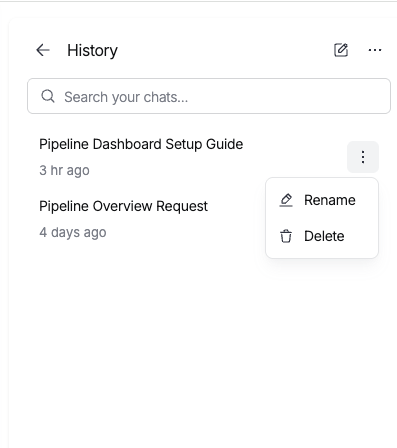
You can perform the following actions on each conversation:
- Resume: Select a conversation to reopen it and continue where you left off.
- Rename: Select the three-dot menu (...) next to a conversation and choose Rename to give it a more descriptive title.
- Delete: Select the three-dot menu (...) next to a conversation and choose Delete to permanently remove it.
Use the Search your chats... bar at the top of the History panel to find a specific conversation by name.
Settings
The Settings panel lets you configure how the AI assistant behaves. To open Settings:
- Select the three-dot menu (...) at the top of the AI chat panel.
- Select Settings.
The Settings panel has two tabs: Rules and Memories.
Rules
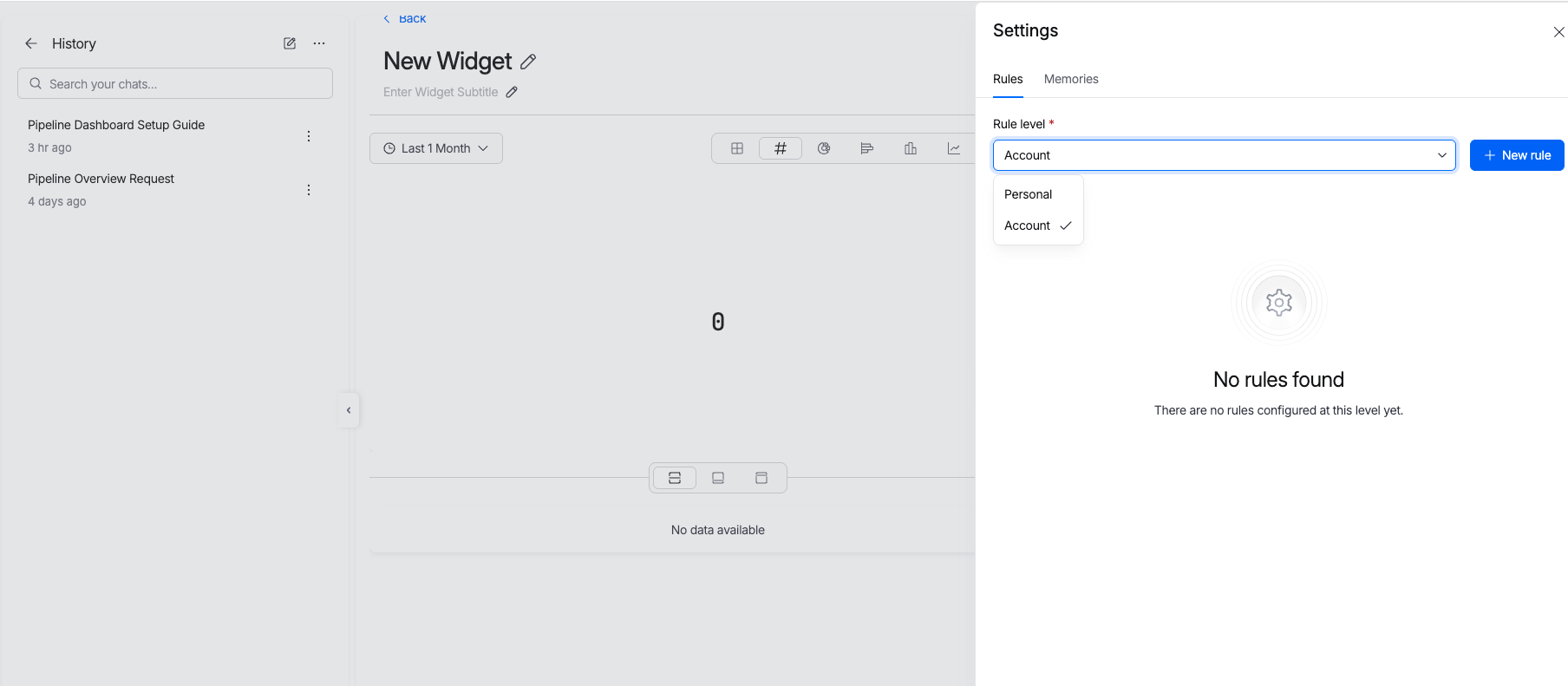
Rules let you customize the behavior of the AI assistant by providing instructions it follows during conversations. For example, you can create a rule such as "Always use camelCase for variable names in JavaScript code."
Rule levels
Each rule is created at a specific level, which determines who the rule applies to:
- Personal: The rule applies only to you. Other users in the account are not affected.
- Account: The rule applies to all users in the account.
Use the Rule level dropdown to switch between Personal and Account rules.
Add a new rule
-
In the Settings panel, select the Rules tab.
-
Select the Rule level (Personal or Account) from the dropdown.
-
Select + New rule.
-
In the Add New Rule panel, enter a Rule Description. This is a plain-language instruction that tells the AI how to behave. For example: "Always use camelCase for variable names in JavaScript code."
-
Select Create to save the rule.
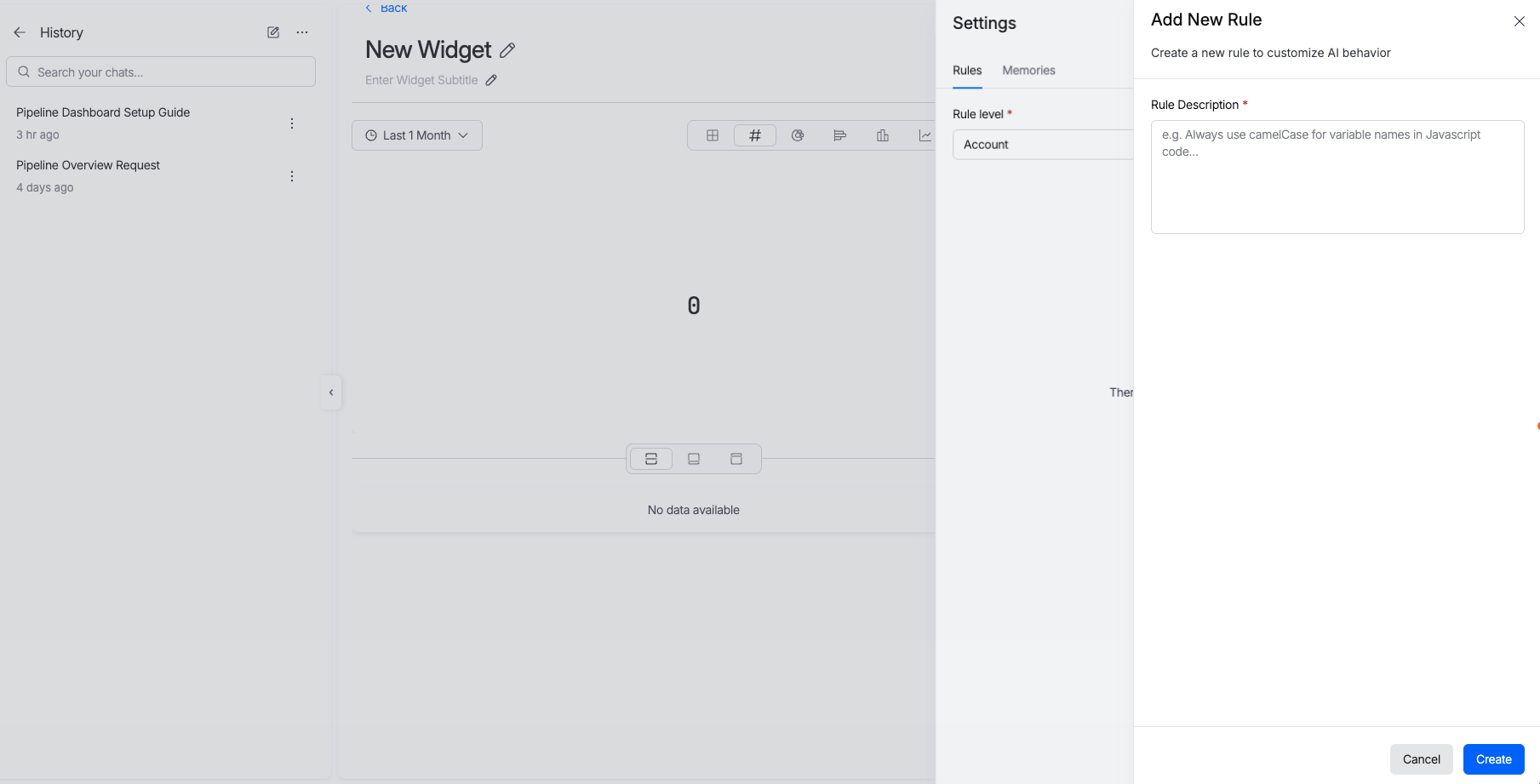
The rule takes effect immediately and applies to all future conversations at the selected level.
Memories
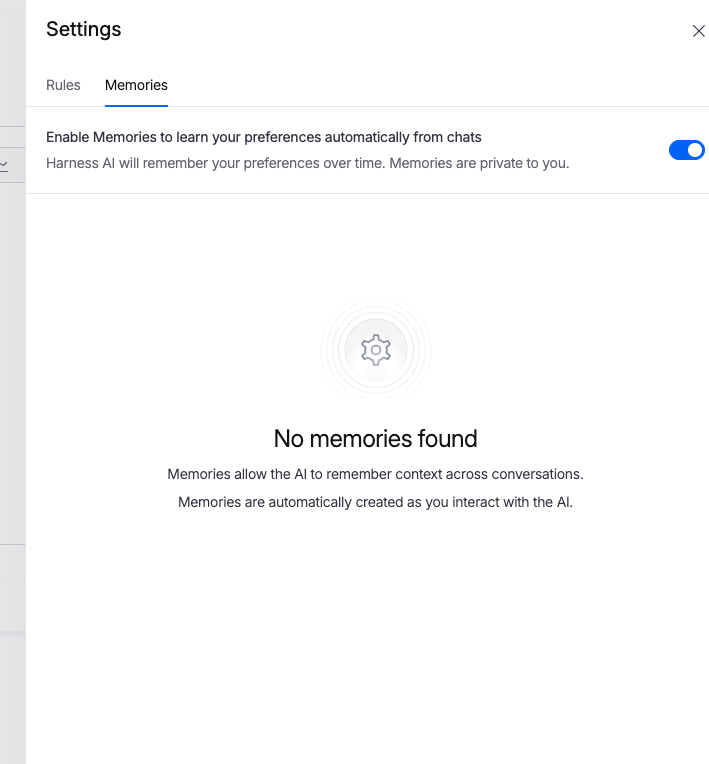
Memories allow the AI assistant to remember context from your previous conversations. The assistant automatically creates memories as you interact with it over time, so it can provide more relevant and personalized responses in future sessions.
Key details about Memories:
- Automatic: Memories are created automatically based on your conversations. You do not need to create them manually.
- Private: Memories are private to you. Other users in the account cannot see your memories.
- Toggle on or off: Use the toggle at the top of the Memories tab to enable or disable the feature. When enabled, the description reads: "Enable Memories to learn your preferences automatically from chats. Harness AI will remember your preferences over time. Memories are private to you."
When Memories is enabled, the AI assistant learns your preferences and applies them to future conversations without you needing to repeat yourself.
Generate a dashboard with AI
- Go to Dashboards.
- In the AI chat panel on the left, type a description of the dashboard you want in the text input field. For example: "Show me a dashboard with daily deployment counts and failure rates for the last 30 days."
- Select the send button (blue arrow) to submit your request.
- The AI creates a dashboard with widgets, queries, and layout based on your description.
- Review the result. If the dashboard does not match your expectations, type a follow-up message to refine it.
Create a widget with AI
You can also use the AI assistant to add individual widgets to an existing dashboard.
- Open your dashboard and select Edit in the header.
- Select Create a widget using AI. The AI dialog opens.
- Select the module for which you want to generate a visualization.
- Enter your request in plain language. For example: "Total builds over time for the last 30 days."
- The AI generates the widget. Review it and save it to your dashboard.
- To add more widgets, select a module and enter another request.
Supported query types
The AI assistant supports three levels of query complexity:
Quick queries
High-level data questions without filters. Examples:
- What are my total AWS costs?
- What is my deployment failure rate?
- What count of my feature flags are active?
Constrained queries
Questions with specific filter conditions. Examples:
- What are my total AWS costs? Filter for the last 45 days.
- What is my daily deployment success rate? Filter for the last 60 days.
- What is my monthly build count? Filter for the last 90 days.
Custom queries
Questions that include custom fields such as table calculations. Examples:
- What are my AWS total costs? Pivot by region. Filter for the last 30 days. Include a table calculation returning yes if region is "us-west1", else no. Make this a table.
Supported visualization types
The AI assistant selects the most appropriate visualization type based on your request. To choose a specific type, include it in your description. For example: "What is my monthly deployment count? Filter for the past 12 months. Make this a line chart."
The following visualization types are supported:
- Bar
- Column
- Line
- Pie
- Scatterplot
- Single Value
- Table
The AI assistant does not support customizing visualization styles such as titles or colors within the request itself. You can adjust these settings manually after the widget is created.
Next steps
- Dashboards overview — Learn how to browse and manage dashboards.
- Create widgets — Manually configure widgets and queries.
- Overview of Harness AI — Learn about AI features across Harness.